















 Swipzy








 Evening Skies3 items
 Weekend Trips2 items
 Around Town2 items
01 Library
Pick where to start.
Open unsorted photos or videos, pick a month, or choose a category. Plus also lets you start from an album.

 App Store
A camera roll organizer for iPhone
Sort your photos and videos one at a time. Favorite what you love, move it into albums, or swipe up to queue it for review.

Start with a few photos or videos. Pick up where you left off whenever you’re ready for more.
01 Library
Open unsorted photos or videos, pick a month, or choose a category. Plus also lets you start from an album.
02 Sort
Swipe left for next, right for previous, or up to queue for review. Favorite, move to an album, or undo supported organizing actions.
03 Review
Keep individual items, clear the queue to keep everything, or confirm deletion when you’re ready.
Gallery
Use the Photos and Videos filters in Gallery. Favorite what you love or move it into albums as you sort.
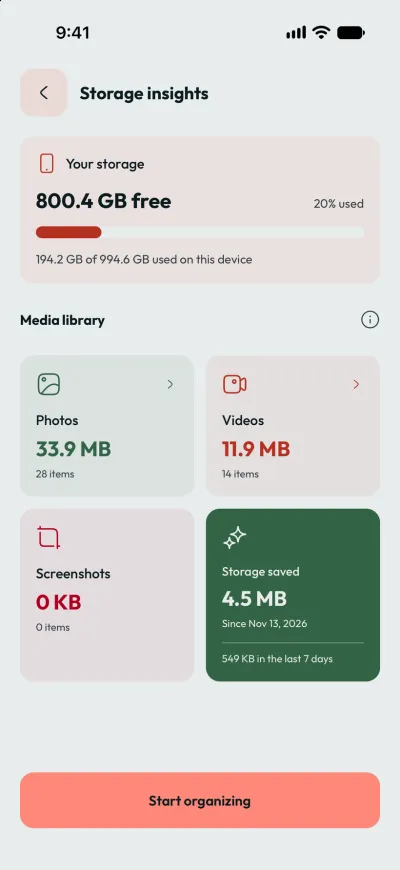
Storage Insights
Storage Insights shows measured photo and video sizes and tracks what you’ve deleted through Swipzy.
Album Sorting
With Plus, start a sorting session in any available album. Remove a photo from the album and keep it in your iPhone library.
Home Categories
Sort Favorites and Screenshots for free. Plus includes the other available categories, including Duplicates, Screen recordings, and Live Photos.
Start free with Favorites and Screenshots. Plus includes the other available categories, such as Screen recordings, Live Photos, and Panoramas, and removes the daily queue limit.
| Features | Free | Plus |
|---|---|---|
| Browse, favorite, and manage albums | Included | Included |
| Daily review queue additions | Up to 50 | Unlimited |
| Start a sorting session from an album | — | Included |
| Sort by category | Favorites and Screenshots | All available categories |
| Color palettes | One palette | Six palettes |
Monthly, yearly, and one-time Lifetime options for iPhone. See current plans and prices in the app.
Open Swipzy Settings → Photo access. With limited access, update your selection there. Full access lets Swipzy check all albums to identify unsorted media. Notification access is optional and can be changed separately.
Swiping up or tapping Delete while sorting adds the item to the review queue. Open Review queue to check your selection before confirming deletion. Remove an item from the queue to keep it. Undo reverses eligible organizing actions and refunds a charged queue addition within the same daily window. Undo cannot reverse a confirmed library deletion.
On iPhone, removing an item from an album keeps it in Photos, and deleting an album preserves the media. Check the confirmation before proceeding.
A plus sign means the total includes only measured files. Some cloud-only or inaccessible files have unknown sizes. Storage Insights counts successful deletions made through Swipzy. On iPhone, Recently Deleted can retain items and delay space recovery. Check the system Photos app for recovery options.











 0:05